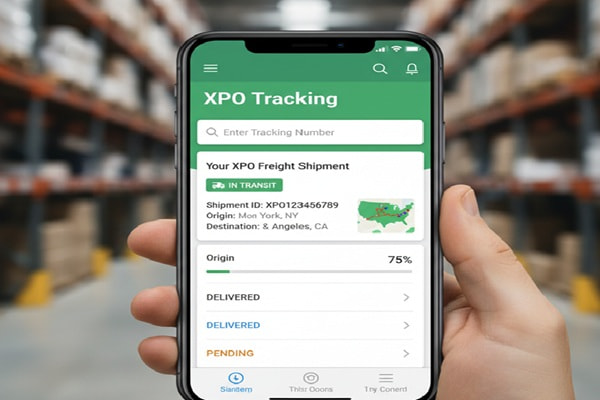

Freight tracking is not like tracking a parcel from an online store. When you ship with XPO, you are dealing with a professional LTL network spanning over 750 service centers across North America. The tracking system is more detailed, the identifiers are different, and the statuses actually mean something specific to freight logistics.
Track Your Order
Most guides on this topic give you one line: enter your PRO number at xpo.com. That is fine if everything goes smoothly. But what if you do not have a PRO number? What if the tracking shows a status you do not recognize? What if the shipment has not updated in days?
This guide covers all of it. By the end, you will know how to track any XPO shipment, what every status means in plain English, when to worry, and exactly how to get a resolution when something goes wrong.
What Is XPO and Why Their Tracking Works Differently
XPO is one of the top five LTL carriers in North America by revenue. The company operates more than 750 service centers, runs over 8,000 tractors and 24,000 trailers, and covers approximately 99% of all US zip codes. It also provides cross-border service to Canada, Mexico, and Puerto Rico, plus LTL operations across Western Europe.
Unlike parcel carriers such as FedEx or UPS, XPO specialises in less-than-truckload freight. This means your shipment shares trailer space with other shippers’ freight and moves through a hub-and-spoke network of terminals. Each terminal scan creates a tracking event, which is why LTL tracking looks very different from a standard parcel scan history.
XPO was formerly known as XPO Logistics, Inc. and rebranded to XPO, Inc. in December 2022. If you see older references to XPO Logistics tracking, they refer to the same company and the same tracking systems.
Step 1: Find Your XPO Tracking Number
XPO uses several different identifiers for tracking. Understanding which one you have determines where and how you track your shipment.
The PRO Number: Your Primary Tracking ID
The PRO number, short for Progressive Number, is the most important identifier in XPO freight tracking. It is a nine-digit number assigned to every LTL shipment and is printed as a scannable barcode sticker affixed directly to your freight.
Where to find your PRO number:
- On the barcode sticker physically attached to your shipment
- In your XPO shipment confirmation email or order confirmation
- On your bill of lading document
- Inside your ltl.xpo.com portal account if you are a registered user
- On the freight invoice or receipt from the booking process
Other Identifiers You Can Use for Tracking
If you do not have the PRO number, XPO registered portal users can also track using the following identifiers:
| Identifier | What It Is | Who Can Use It |
| PRO Number | Nine-digit freight bill number (most common) | Anyone. No login required at xpo.com/track |
| Bill of Lading (BOL) | Shipping contract document number | Registered ltl.xpo.com users |
| Pickup Request Number | Confirmation number from booking a pickup | Registered ltl.xpo.com users |
| Purchase Order Number | Your internal PO number linked to the shipment | Registered ltl.xpo.com users |
| Reference Number | Custom reference code set up in the portal | Registered ltl.xpo.com users |
Step 2: How to Track Your XPO Shipment
There are four ways to track an XPO freight shipment. Each has a different level of detail and access requirement.
Method 1: XPO Official Tracking Page (No Login Required)
- Go to xpo.com/track in your browser.
- Enter your PRO number in the search field. You can enter up to 35 PRO numbers at once, one per line or separated by commas.
- Click the Track button.
- Your results display the current status, location, and transit history for each shipment.
This is the fastest option for checking a quick status. It requires no account and works on any device. The limitation is that it only accepts PRO numbers, not BOL or reference numbers.
Method 2: XPO Customer Portal (Full Dashboard)
For businesses managing regular shipments, the ltl.xpo.com portal offers significantly more functionality.
- Log in to your account at ltl.xpo.com.
- Your shipment dashboard loads automatically, showing all in-transit shipments for your account.
- Click any row to see detailed status, location, documents, and estimated delivery information.
- To set up email notifications, go to the Shipment Notifications tab, enter the recipient email, and choose which status events trigger an alert.
Method 3: Third-Party Tracking Platforms
Several third-party platforms integrate with XPO’s data feed and can be useful when you need to monitor XPO alongside other carriers in a single dashboard.
| Platform | Best For | XPO Support |
| parcelsapp.com | Quick PRO number lookup, no account needed | Full XPO LTL integration |
| ship24.com | Multi-carrier tracking in one place | XPO Logistics supported |
| aftership.com | E-commerce and dropshipping businesses | API integration available |
| parcelmonitor.com | Email notifications without a portal account | XPO carrier supported |
| 17track.net | International shipment monitoring | XPO supported |
Method 4: Phone and Email
If online tracking does not resolve your question, XPO customer support can pull more detailed carrier-side information that may not appear in the public tracking interface.
- Phone: 800-755-2728 (US, Monday to Friday business hours)
- Email: LTLCCG@xpo.com
- Fax: 888-890-3874
- Headquarters address: 2211 Old Earhart Road, Suite 100, Ann Arbor, MI 48105
Understanding Every XPO Tracking Status
XPO tracking statuses are written for freight professionals, not general consumers. Here is what each one actually means in plain language, and what you should do at each stage.
| Status | Plain English Meaning | Action Required |
| In the System | XPO has recorded your shipment details. Physical pickup has not happened yet. | None. Wait for pickup confirmation. |
| Picked Up | XPO has collected your freight from the origin address. | None. Shipment is moving. |
| At Origin | Freight is at the first XPO service center after pickup. | None. It will be loaded for linehaul. |
| Heading Out | Shipment has departed a service center and is on a linehaul trailer. | None. Expect the next scan at a transit hub. |
| Pit Stop | Freight has arrived at an intermediate service center during transit. | None. Normal hub-and-spoke movement. |
| Moving to Final Stop | Shipment is on its last linehaul leg toward the destination terminal. | Prepare for delivery. Contact recipient if needed. |
| Special Route | Shipment is routed to Alaska, Hawaii, Puerto Rico, or Mexico via partner carrier. | Expect longer transit. Partner carrier may issue separate tracking. |
| Arrived at Destination | Freight is at the final XPO service center near the delivery address. | Delivery attempt should happen within 1 business day. |
| Out for Delivery | A driver has loaded your freight and is heading to the delivery address. | Ensure receiving staff or dock is available. |
| Waiting to Unload | Freight arrived at destination but is waiting to be unloaded from the trailer. | None. Normal operational step. |
| Delivery Tried | XPO attempted delivery but was unable to complete it. | Contact XPO to reschedule. Reasons vary (no one available, access issue, appointment required). |
| Might Be Late | XPO has flagged a potential delay affecting your estimated delivery date. | Monitor closely. Contact XPO if time-sensitive. |
| Actually Late | Confirmed delay. Delivery will not happen on the originally expected date. | Contact XPO for a revised ETA and note for planning. |
| Delayed En Route | Shipment is running behind schedule during transit. | Contact XPO for updated ETA. Weather or capacity issues are common causes. |
| Delivered | XPO has delivered and the receiving party has signed for the freight. | Verify with receiver. Request a signed POD if needed. |
XPO Freight Delivery Times: What to Realistically Expect
XPO quotes transit times in business days based on origin and destination zip codes. Their website includes a transit time calculator that gives route-specific estimates. The figures below are typical ranges based on distance band.
| Distance Band | Typical Transit Time | Notes |
| Local / Regional | 1 to 2 business days | Same state or adjacent states. Often overnight. |
| Interregional | 2 to 4 business days | Mid-range distances. Covers most US corridor routes. |
| Long Haul / Coast to Coast | 4 to 6 business days | Cross-country routes. May involve multiple linehaul legs. |
| Cross-Border (Canada) | 3 to 7 business days | Customs processing adds 1 to 2 days minimum. |
| Cross-Border (Mexico) | 5 to 10 business days | Partner carrier involved. Tracking may shift to a new number. |
| Alaska / Hawaii / Puerto Rico | 7 to 15 business days | XPO routes via partner carriers. Tracking continuity varies. |
These ranges assume standard LTL service. XPO also offers expedited services for time-critical freight that compress these windows significantly. Transit time calculators on ltl.xpo.com provide day-definite estimates for specific routes.
Note that transit time does not include the day of pickup. A shipment picked up on a Monday with a 2-day transit time is expected to deliver on Wednesday, not Tuesday.
XPO Tracking Not Working: Common Problems and Solutions
Freight tracking issues are more common than most people expect. Here is a clear breakdown of every common problem and what to do about each one.
Problem: PRO Number Not Found or No Results Showing
This is the most frequently reported issue. It usually has a simple cause.
- Cause 1: The PRO number was entered incorrectly. Nine-digit numbers are easy to misread from a shipping label.
- Solution: Copy the number directly from your email confirmation or document rather than reading it off a label.
- Cause 2: The shipment has been booked but not yet physically picked up or scanned by XPO.
- Solution: Wait 2 to 4 hours after the scheduled pickup window and try again.
- Cause 3: There is a delay in the system registering the first scan. This happens occasionally at high-volume terminals.
- Solution: Wait up to 24 hours. If the number still returns no results after 24 hours and the pickup was confirmed, call XPO support.
Problem: Tracking Has Not Updated for Several Days
LTL freight does not scan at every single handling point. Some long linehaul legs generate no intermediate scans for 24 to 48 hours. This is normal in LTL operations, especially on overnight or multi-day trunk routes.
If your tracking has not moved for more than 48 to 72 hours and the estimated delivery date has passed, that is the time to contact XPO directly. Provide your PRO number and ask for a manual trace on the shipment.
Problem: Status Shows Delivered But Freight Was Not Received
This situation, while concerning, has a few possible explanations before escalating to a claims investigation.
- Check whether the freight was signed for by another person at the delivery address, such as a dock worker or office reception.
- Confirm the delivery address on the BOL matches where you expected delivery. Address discrepancies at booking are a frequent cause.
- Request a signed Proof of Delivery document from XPO. This shows who signed, at what time, and what condition the freight was noted in.
- If the POD shows a signature you do not recognise and the freight is genuinely missing, contact XPO to initiate a formal freight claim.
Problem: Shipment Stuck at a Terminal
Freight can be held at a service center for reasons that are not always reflected clearly in the public tracking status. Common causes include:
- An appointment is required at the destination before delivery can proceed
- Customs holds for cross-border shipments
- Refused delivery where the recipient declined to accept the shipment
- Capacity issues at a high-volume terminal during peak periods
- Weather or natural events affecting the destination area
In all of these cases, the fastest resolution is a direct call to XPO at 800-755-2728 with your PRO number ready. The customer service team can pull the actual hold reason and tell you what next step is needed.
Also Read : AliExpress Tracking: How to Track Your Order
How to Set Up XPO Shipment Notifications
Manually checking tracking is time-consuming for businesses handling multiple shipments. XPO offers automated email notifications that update you when key status events occur, so you do not need to log in repeatedly.
Setting Up Notifications in the Portal
- Log in to ltl.xpo.com.
- Open the Tools menu at the top of the homepage.
- Select Shipment Notifications from the dropdown.
- Choose whether to set a notification for a single PRO number or for all shipments associated with your account location.
- Enter the recipient email address or addresses.
- Select the specific status events you want to trigger a notification, such as pickup confirmed, out for delivery, delivered, or exception.
- Save your preferences. Notifications begin immediately for new events on monitored shipments.
XPO Tracking for Businesses: The Portal vs. Guest Tracking
Many shippers start with the guest tracking page and never set up a portal account. That works for occasional shipments, but if you ship regularly with XPO, the portal at ltl.xpo.com gives you capabilities that the guest page simply cannot match.
| Feature | Guest Tracking (xpo.com/track) | Portal Account (ltl.xpo.com) |
| Track by PRO number | Yes | Yes |
| Track by BOL number | No | Yes |
| Track by PO or reference number | No | Yes |
| Track up to 35 shipments at once | Yes | Yes |
| Full shipment dashboard | No | Yes |
| Email notifications | No | Yes |
| View and print BOL documents | No | Yes |
| Request quotes and pickups | No | Yes |
| Access proof of delivery docs | No | Yes |
| Shipment history and reporting | No | Yes |
Registering for a portal account is free and straightforward at ltl.xpo.com. For any business that ships more than occasionally, the additional tracking and document access capabilities make the setup worthwhile.
Common Mistakes Shippers Make with XPO Tracking
- Confusing the PRO number with the BOL number. These are different documents. The PRO number is the carrier-assigned tracking ID. The BOL is the shipping contract. Only the PRO number works for guest tracking without a portal login.
- Checking tracking immediately after booking. XPO does not create tracking data until the freight is physically scanned at pickup. Checking within the first few hours will return no results.
- Ignoring the check digit. If you are entering a PRO number manually and it comes back as not found, verify the ninth digit. The check digit calculation can help confirm whether the number is valid.
- Not requesting a POD after delivery. A Proof of Delivery document confirms who signed for the freight and the condition at receipt. Always request this for high-value shipments before releasing payment to a supplier.
- Waiting too long on a held shipment. XPO service centers are not long-term storage facilities. If freight is held due to an undeliverable status, it will eventually be returned to the shipper, often at additional cost. Act within 48 hours.
- Not noting the estimated delivery date at booking. XPO provides a day-definite delivery estimate when the shipment is created. If you do not record this, you have no reference point for knowing when a delay has actually occurred.
XPO Tracking Checklist for Shippers
Use this checklist to manage every XPO shipment from booking to delivery without missing a step.
| Stage | Action |
| At Booking | Record the PRO number and estimated delivery date. Save the BOL. |
| Post-Pickup | Confirm pickup status appears in tracking within 2 to 4 hours. |
| In Transit | Set up portal notifications or check daily on the tracking page. |
| Approaching ETA | Alert receiving staff. Confirm dock availability and any appointment requirements. |
| On Delivery Day | Ensure a qualified person is available to sign and inspect freight. |
| At Receipt | Inspect before signing. Note any visible damage on the delivery receipt. |
| Post-Delivery | Request a signed POD for your records within 24 hours of delivery. |
| If Delayed | Wait 48 to 72 hours past ETA before calling, unless time-critical. |
| If Undeliverable | Contact XPO within 48 hours to reschedule and avoid storage fees. |
Frequently Asked Questions About XPO Tracking
What is an XPO PRO number?
A PRO number is the nine-digit progressive number XPO assigns to every LTL shipment. It is the primary tracking identifier and is printed as a barcode on the shipping label. You need this number to track a shipment without logging in to the XPO portal.
How do I track an XPO freight shipment without a PRO number?
Without a PRO number, you need a registered ltl.xpo.com account. Portal users can search by bill of lading number, pickup request number, purchase order number, or custom reference number. If you have none of these, contact XPO customer support at 800-755-2728 and provide as much shipment detail as possible. They can locate the shipment and give you the PRO number.
How long does XPO freight take to deliver?
Delivery time depends on the route. Regional shipments within the same state or adjacent states often deliver in 1 to 2 business days. Cross-country shipments typically take 4 to 6 business days. Cross-border to Canada adds 1 to 2 days for customs. XPO publishes a transit time calculator on ltl.xpo.com for route-specific estimates.
Why is my XPO tracking not updating?
LTL freight does not scan at every handling point. Gaps of 24 to 48 hours without a new tracking event are normal during long linehaul legs. If your tracking has not moved for more than 48 to 72 hours beyond the estimated delivery date, call XPO at 800-755-2728 and request a manual trace using your PRO number.
What does ‘Delivery Tried’ mean on XPO tracking?
It means XPO attempted a delivery but was unable to complete it. Common reasons include no one available to sign, the delivery location being closed, an appointment requirement that was not arranged, or an access issue at the delivery address. Contact XPO within 48 hours to reschedule, or the freight may be held and eventually returned to the shipper.
Can I track an XPO shipment by Bill of Lading number?
Yes, but only if you have a registered ltl.xpo.com account. BOL tracking is not available on the public guest tracking page at xpo.com/track. That page accepts PRO numbers only.
How do I get a Proof of Delivery from XPO?
Log in to your ltl.xpo.com portal account and go to Tools, then Document Finder. Enter the PRO number and select Proof of Delivery as the document type. This gives you the signed delivery receipt showing who accepted the freight and when. If you do not have a portal account, you can request the POD by email or phone through XPO customer support.
Does XPO track shipments to Canada and Mexico?
Yes. XPO provides cross-border LTL service to Canada, Mexico, Puerto Rico, and the Caribbean. Cross-border tracking may show a gap during customs processing. For Mexico shipments, a partner carrier is typically involved and may issue a separate tracking number once the freight crosses the border.
How many PRO numbers can I track at once on XPO?
The XPO tracking page at xpo.com/track accepts up to 35 PRO numbers in a single search. Enter them one per line or separated by commas. Portal users at ltl.xpo.com can view their full active shipment dashboard without entering numbers individually.